~$ setup guides
Fortnite Internal
Follow the steps in order. Finish every preparation step before you open the loader.
You need
- Windows Defender real-time protection off
- Visual C++ 2015–2022 (x64 and x86) and DirectX runtime
- No FACEIT Anti-Cheat or third-party antivirus installed
- In-game graphics set to Low
Keyboard shortcuts
- F2 inject · Insert menu
-
PC preparation checklist
Complete every step below before starting the loader. Skipped preparation is the most common cause of launch and injection problems.
Step 1 — Disable Windows Defender
- Download DControl.
- Extract the archive using the WinRAR password sordum.
- Open DControl.exe.
- Disable Windows Defender Real-Time Protection.
Important: Windows Defender may turn itself back on after a reboot. Confirm that real-time protection is disabled before every loader launch.
Step 2 — Install required components
Install all of the following:
- Visual C++ Redistributable 2015–2022 — x64
- Visual C++ Redistributable 2015–2022 — x86
- DirectX End-User Runtime
Step 3 — Remove conflicting software
The following software must be fully uninstalled, not merely closed:
- FACEIT Anti-Cheat
- Third-party antivirus software such as Avast, Kaspersky, McAfee, ESET, or Bitdefender
If FACEIT Anti-Cheat or a third-party antivirus remains installed, the loader may not work regardless of the other settings.
Step 4 — Configure game graphics
- Launch the game once without the product.
- Open Graphics Settings.
- Set all graphics options to Low.
- Close the game completely.
Low graphics settings improve stability and reduce the likelihood of crashes or freezes during injection.
-
Fortnite — Internal launch guide
Complete Preparing Your Computer before continuing.
Important: The game and its launcher must be fully closed before you start the loader.
Launch steps
- Download and run the loader.
- Enter your license key.
- Wait for the loader message asking you to launch Fortnite and press F2 from the main menu.
- Launch Fortnite.
- When you reach the lobby, press F2 and wait 10–20 seconds.
Controls
Action Key Open or close the menu Insert Inject from the lobby F2 Setup complete. Enjoy your game.
-
Instant crash when the game launches
- Install the latest graphics driver for NVIDIA or AMD.
- Open System → Display → Graphics and disable:
- Hardware-accelerated GPU scheduling
- Variable refresh rate
- Optimizations for windowed games
- Open Command Prompt as Administrator and run:
reg add "HKLM\SOFTWARE\Microsoft\Windows\Dwm" /v OverlayTestMode /t REG_DWORD /d 5 /f- Restart the PC.
- Try the injection again.
Instant BSOD during injection
Open Command Prompt as Administrator and run:
reg add "HKLM\SYSTEM\CurrentControlSet\Control\Session Manager\Memory Management" /v FeatureSettingsOverrideMask /t REG_DWORD /d 3 /fRestart the PC before trying again.
If the issue continues, open a Stellar Market support ticket and include the error message.
Fortnite External
Follow the steps in order. Finish every preparation step before you open the loader.
You need
- Windows Defender real-time protection off
- Visual C++ 2015–2022 (x64 and x86) and DirectX runtime
- No FACEIT Anti-Cheat or third-party antivirus installed
- Windows Driver Kit (WDK)
- Medal.tv installed and signed in
- Borderless Windowed or Windowed, not Fullscreen
Keyboard shortcuts
- F2 inject · Insert menu
-
PC preparation checklist
Complete every step below before starting the loader. Skipped preparation is the most common cause of launch and injection problems.
Step 1 — Disable Windows Defender
- Download DControl.
- Extract the archive using the WinRAR password sordum.
- Open DControl.exe.
- Disable Windows Defender Real-Time Protection.
Important: Windows Defender may turn itself back on after a reboot. Confirm that real-time protection is disabled before every loader launch.
Step 2 — Install required components
Install all of the following:
- Visual C++ Redistributable 2015–2022 — x64
- Visual C++ Redistributable 2015–2022 — x86
- DirectX End-User Runtime
Step 3 — Remove conflicting software
The following software must be fully uninstalled, not merely closed:
- FACEIT Anti-Cheat
- Third-party antivirus software such as Avast, Kaspersky, McAfee, ESET, or Bitdefender
If FACEIT Anti-Cheat or a third-party antivirus remains installed, the loader may not work regardless of the other settings.
Step 4 — Configure game graphics
- Launch the game once without the product.
- Open Graphics Settings.
- Set all graphics options to Low.
- Close the game completely.
Low graphics settings improve stability and reduce the likelihood of crashes or freezes during injection.
-
Windows Driver Kit (WDK) installation
Follow these steps carefully. The installation path must match the required configuration.
Step 1 — Download
Download the official Windows Driver Kit (WDK).
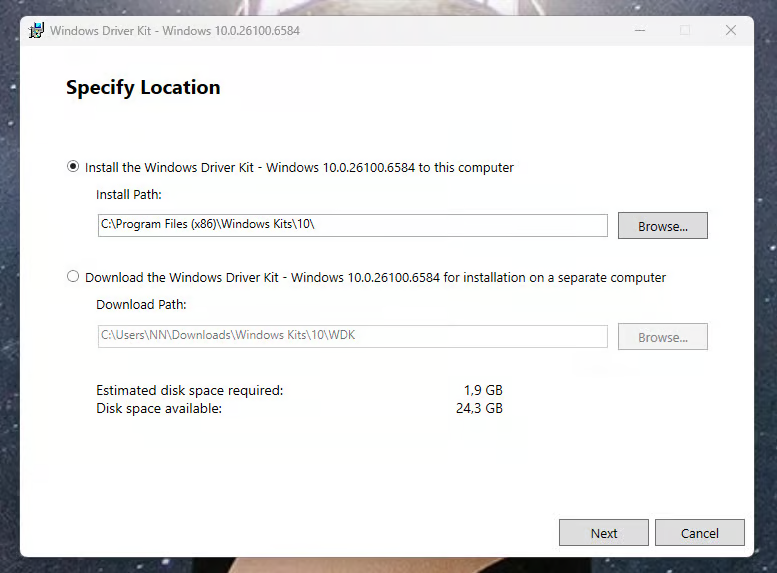
Step 2 — Verify the configuration
During installation, confirm that the selected path matches the configuration shown below.
Warning: An incorrect installation path can cause the loader to fail.
Step 3 — Install
Proceed through the installer in this order:
Next → Next → Next → Accept
-
Complete Preparing Your Computer before continuing.
Before you start
- Install Medal.tv.
- Sign in to your Medal.tv account.
- Make sure the game and its launcher are fully closed.
Required: Medal.tv must be installed and signed in before starting the loader. Without it, the product will not inject.
Launch order
- Download and run the loader.
- Enter your license key.
- After the loader closes, run Medal.tv as Administrator.
- Launch Fortnite.
- From the lobby, press F2.
- Wait up to 60 seconds for the menu to appear.
- Use Insert to open or close the menu.
The menu may take 10–60 seconds to appear after pressing F2. Remain in the lobby and wait without clicking anything.
Display mode
Mode Support Borderless Windowed Recommended Windowed Supported Fullscreen Not supported -
Menu does not appear
Try this alternative launch order:
- Launch the game first.
- Run the loader.
- Launch Medal as Administrator.
- Press F2 from the lobby.
Menu still missing after injection
Confirm all of the following:
- Press F2 only while in the lobby.
- Listen for a beep after pressing F2.
- Wait at least 30–60 seconds in the lobby.
- Set the display mode to Borderless Windowed.
Windows settings
Disable:
- Windows SmartScreen
- User Account Control (UAC)
- Windows Firewall
- Microsoft Vulnerable Driver Blocklist
Conflicting software
- Confirm that no third-party antivirus is installed.
- Confirm that FACEIT Anti-Cheat is fully uninstalled.
Pre-launch checklist
Requirement Status Game and launcher are fully closed Medal.tv is installed and signed in Windows Defender Real-Time Protection is disabled FACEIT Anti-Cheat is uninstalled Display mode is Borderless Windowed Still not working?
Generate a diagnostic bundle for Stellar Market Support:
- Download support.exe.
- Create a new empty folder and place
support.exeinside it. - Run
support.exe. - Wait for
bundle.encto appear in the same folder. - Send
bundle.encthrough a Stellar Market Discord support ticket.
The bundle contains system diagnostic information that helps support identify the exact problem and provide a direct fix.
Valorant
Follow the steps in order. Finish every preparation step before you open the loader.
You need
- Windows Defender real-time protection off
- Visual C++ 2015–2022 (x64 and x86) and DirectX runtime
- No FACEIT Anti-Cheat or third-party antivirus installed
- Memory Integrity (HVCI) enabled
- Nord VPN installed and signed in
- Borderless Windowed or Windowed, not Fullscreen
Keyboard shortcuts
- F2 inject · Insert menu
-
PC preparation checklist
Complete every step below before starting the loader. Skipped preparation is the most common cause of issues.
Step 1 — Disable Windows Defender
- Download DControl.
- Extract the archive using the WinRAR password sordum.
- Open DControl.exe.
- Disable Windows Defender Real-Time Protection.
Windows Defender may reset after a reboot. Confirm that real-time protection is disabled before every loader launch.
Step 2 — Install required components
Install:
- Visual C++ Redistributable 2015–2022 — x64
- Visual C++ Redistributable 2015–2022 — x86
- DirectX End-User Runtime
Step 3 — Remove conflicting software
Fully uninstall:
- FACEIT Anti-Cheat
- Any third-party antivirus, including Avast, Kaspersky, McAfee, ESET, or Bitdefender
Closing these programs is not sufficient. If they remain installed, the loader may not work.
Step 4 — Enable Memory Integrity
- Open Windows Security → Device Security → Core Isolation.
- Enable Memory Integrity (HVCI).
- Restart the PC.
Low in-game graphics settings can also improve stability and reduce crashes or freezes during injection.
-
Complete Preparing Your Computer before continuing.
Before you start
- Install Nord VPN. The reference workflow uses the free installation/account; purchasing a subscription is not required for this setup.
- Sign in to your Nord VPN account.
- Make sure the game and its launcher are fully closed.
Required: Nord VPN must be installed and signed in before starting the loader. Without it, the product will not inject.
Launch order
- Download and run the loader.
- Enter your license key.
- After the loader closes, run Nord VPN as Administrator.
- Launch Valorant.
- From the lobby, press F2.
- Wait up to 60 seconds for the menu to appear.
- Use Insert to open or close the menu.
The menu may take 10–60 seconds to appear after pressing F2. Remain in the lobby and wait without clicking anything.
Display mode
Mode Support Borderless Windowed Recommended Windowed Supported Fullscreen Not supported -
Menu does not appear
Try this alternative launch order:
- Launch the game first.
- Run the loader.
- Launch Medal as Administrator.
- Press F2 from the lobby.
Menu still missing after injection
Confirm all of the following:
- Press F2 only while in the lobby.
- Listen for a beep after pressing F2.
- Wait at least 30–60 seconds in the lobby.
- Set the display mode to Borderless Windowed.
Windows settings
Disable:
- Windows SmartScreen
- User Account Control (UAC)
- Windows Firewall
- Microsoft Vulnerable Driver Blocklist
Conflicting software
- Confirm that no third-party antivirus is installed.
- Confirm that FACEIT Anti-Cheat is fully uninstalled.
Pre-launch checklist
Requirement Status Game and launcher are fully closed Medal.tv is installed and signed in Windows Defender Real-Time Protection is disabled FACEIT Anti-Cheat is uninstalled Display mode is Borderless Windowed Still not working?
Generate a diagnostic bundle for Stellar Market Support:
- Download support.exe.
- Create a new empty folder and place
support.exeinside it. - Run
support.exe. - Wait for
bundle.encto appear in the same folder. - Send
bundle.encthrough a Stellar Market Discord support ticket.
The bundle contains system diagnostic information that helps support identify the exact problem and provide a direct fix.
Escape From Tarkov
Follow the steps in order. Finish every preparation step before you open the loader.
You need
- Windows Defender real-time protection off
- Visual C++ 2015–2022 (x64 and x86) and DirectX runtime
- No FACEIT Anti-Cheat or third-party antivirus installed
- In-game graphics set to Low
Keyboard shortcuts
- F2 inject · Insert menu
-
PC preparation checklist
Complete every step below before starting the loader. Skipped preparation is the most common cause of launch and injection problems.
Step 1 — Disable Windows Defender
- Download DControl.
- Extract the archive using the WinRAR password sordum.
- Open DControl.exe.
- Disable Windows Defender Real-Time Protection.
Important: Windows Defender may turn itself back on after a reboot. Confirm that real-time protection is disabled before every loader launch.
Step 2 — Install required components
Install all of the following:
- Visual C++ Redistributable 2015–2022 — x64
- Visual C++ Redistributable 2015–2022 — x86
- DirectX End-User Runtime
Step 3 — Remove conflicting software
The following software must be fully uninstalled, not merely closed:
- FACEIT Anti-Cheat
- Third-party antivirus software such as Avast, Kaspersky, McAfee, ESET, or Bitdefender
If FACEIT Anti-Cheat or a third-party antivirus remains installed, the loader may not work regardless of the other settings.
Step 4 — Configure game graphics
- Launch the game once without the product.
- Open Graphics Settings.
- Set all graphics options to Low.
- Close the game completely.
Low graphics settings improve stability and reduce the likelihood of crashes or freezes during injection.
-
Escape From Tarkov — Internal launch guide
Complete Preparing Your Computer before continuing.
Important: The game and its launcher must be fully closed before you start the loader.
Launch steps
- Download and run the loader.
- Enter your license key.
- Wait for the loader message asking you to launch Escape From Tarkov and press F2 from the main menu.
- Launch Escape From Tarkov.
- When you reach the lobby, press F2 and wait 10–20 seconds.
Controls
Action Key Open or close the menu Insert Inject from the lobby F2 Setup complete. Enjoy your game.
-
Instant crash when the game launches
- Install the latest NVIDIA or AMD graphics driver.
- Open System → Display → Graphics and disable:
- Hardware-accelerated GPU scheduling
- Variable refresh rate
- Optimizations for windowed games
- Open Command Prompt as Administrator and run:
reg add "HKLM\SOFTWARE\Microsoft\Windows\Dwm" /v OverlayTestMode /t REG_DWORD /d 5 /f- Disable Virtualization in the BIOS.
- Restart the PC.
- Try the injection again.
Driver Error 1 or 2
Disable or remove the following conflicting security features:
- HVCI (Memory Integrity)
- Microsoft Vulnerable Driver Blocklist
- Windows Defender, using DControl
- Riot Vanguard
- FACEIT Anti-Cheat
If these steps do not resolve the error, create a Stellar Market support ticket.
Can't Handle Driver
Open Windows Security and return every Exploit Protection setting to Default.
No menu after pressing F2
- Press F2 and read the loader message.
- If it says
Initialize Complete, continue below. - If an error appears, contact Stellar Market Support.
- If it says
- Disable all background overlays, including NVIDIA GeForce Experience, Discord, and AMD Adrenalin.
- Connect to a VPN and try again.
BSOD after pressing F2
If the computer displays a blue screen after F2, disable KPTI by running these commands one at a time from Command Prompt as Administrator:
reg add "HKLM\SYSTEM\CurrentControlSet\Control\Session Manager\Memory Management" /v FeatureSettingsOverride /t REG_DWORD /d 3 /freg add "HKLM\SYSTEM\CurrentControlSet\Control\Session Manager\Memory Management" /v FeatureSettingsOverrideMask /t REG_DWORD /d 3 /fRestart the PC after applying the registry changes and before trying again.